A structured starting point

Map Customer Journeys in Excel. Bring Them to Life in Aligne.

Define the steps and branches in a familiar workbook. Import them into an editable visual journey—with optional customer communications attached to the right steps.

Template download: no account required. Spreadsheet import: available on Free, Pro and Team.

01Define the steps
02Connect the branches
03Import an editable journey

From rows and connections to a visible journey.

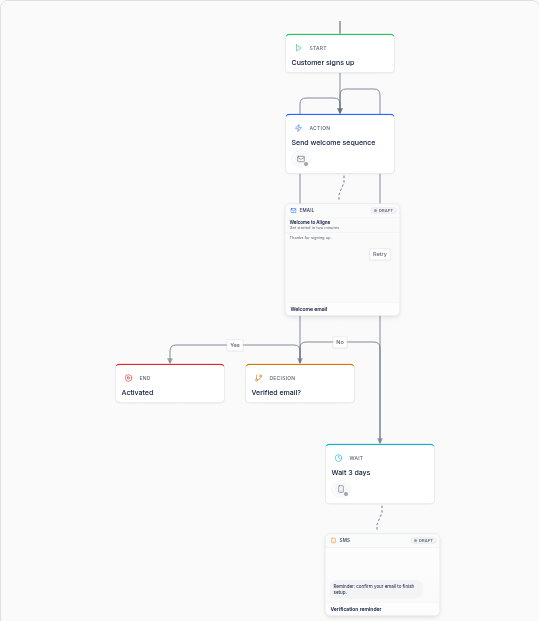
A signup, a welcome email, a verification decision and two possible outcomes. This example uses Aligne’s structured import sample. The template download has blank data sheets, ready for your own journey.

Before · structured workbook data

Steps
Steps sample rows from Aligne’s import schema
Step IDStep TypeStep Name
S1startCustomer signs up
S2actionSend welcome sequence
S3decisionVerified email?
S4waitWait 3 days
S5endActivated
Connections
Connections sample rows from Aligne’s import schema
From Step IDTo Step IDLabel
S1S2—
S2S3—
S3S5Yes
S3S4No
S4S2Retry
Communications
Communications sample rows from Aligne’s import schema
Step IDChannelTitle
S2EmailWelcome email
S4SMSVerification reminder

After · Aligne’s actual canvas

Genuine Aligne canvas capture generated from the workbook sample: five onboarding steps, Yes and No branches, a retry loop, and attached welcome email and SMS reminder
Five steps, Yes / No branches and a retry loop. The welcome email and SMS reminder belong to their steps. Imported content starts as a draft.

The workbook format

Three data sheets. One connected journey.

The template also includes an Instructions sheet. Keep the data sheet names and headers intact; enter your journey into the structured fields.

Steps Required

One row per step. Step ID must be unique and Step Name is required. Step Type is optional: start, action, decision, wait, condition, end or annotation. A blank type becomes an action.

Columns: Step ID · Step Type · Step Name · Description · Tags

Connections Required

One row per arrow. From Step ID and To Step ID must refer to steps you defined. Use Label for branch outcomes such as Yes, No or Retry.

Columns: From Step ID · To Step ID · Label

Communications Optional

One row per attached message. Step ID, Channel and Title are required when a row is used. Channel must match a communication type available in your workspace. Body is plain text; add rich formatting inside Aligne.

Columns: Step ID · Channel · Title · Subject · Preview Text · Body · CTA Label · CTA URL · Image URL · Notes
Build the structure. Then work visually.

  1. 01

    Download

    Use the same Aligne Excel template available inside the import dialog.

  2. 02

    Fill the workbook

    Define steps, connections and branches. Add communications if you have message content ready.

  3. 03

    Upload

    On the Dashboard, open New flow → Import from spreadsheet. Upload your completed .xlsx workbook.

  4. 04

    Review the layout

    Aligne checks the workbook and creates an automatically arranged draft journey on the editable canvas.

  5. 05

    Keep working

    Edit steps and messages, add product screens and share the flow. Comments require Pro or Team; history and audit require Team.

Read the import documentation

Structured import, not spreadsheet guesswork.

Aligne requires its workbook format. It does not interpret arbitrary Excel files, convert an unstructured CX matrix or keep your spreadsheet synchronized. Move the information into the template first. Changes to the original workbook do not update an imported flow.

A few checks before you upload

  • Use .xlsx, no larger than 2 MB.
  • Keep within 500 steps and 2,000 total data rows.
  • Use unique Step IDs and valid references between sheets.
  • Use workspace channel names and HTTP(S) links.

Validation reports errors and warnings before creation. Your workspace’s flow and communication limits still apply. Nothing is published automatically.

Give your spreadsheet a next chapter.

Start with the workbook, then bring message content and review context into the visual journey. Explore email journey mapping with the actual messages.

Free includes spreadsheet import and up to three flows. See pricing for collaboration and governance, or explore customer journey templates.